


Der Apache-Webserver dient als Reverse Proxy: Er nimmt die Anfragen auf Port 80/443 entgegen, terminiert das SSL-Zertifikat und leitet sie intern an den Tomcat auf localhost:8080 weiter. Diese Anleitung deckt Linux und Windows ab. Für Linux ist alternativ Nginx möglich.
Linux
Lege eigene Zertifikate idealerweise unter /etc/apache2/ssl/ ab. Hast du kein SSL-Zertifikat, kannst du dir über Let’s Encrypt ein kostenloses ausstellen lassen – empfehlenswert ist der Certbot.
Aktiviere die benötigten Module:
a2enmod ssl rewrite proxy proxy_wstunnel proxy_httpLege unter /etc/apache2/sites-available die Datei projectfacts.conf an:
<VirtualHost *:80>
   ServerAdmin admin@example.de
   ServerName server.example.de

   Redirect / https://server.example.de/
</VirtualHost>

<VirtualHost *:443>
   ServerAdmin admin@example.de
   ServerName server.example.de
   AddDefaultCharset utf-8
   AddCharset utf-8 .html
   AddCharset utf-8 .do

   SSLEngine On
   SSLProtocol all -SSLv3 -TLSv1 -TLSv1.1
   SSLHonorCipherOrder On
   SSLCipherSuite ECDHE-ECDSA-AES128-GCM-SHA256:ECDHE-RSA-AES128-GCM-SHA256:ECDHE-ECDSA-AES256-GCM-SHA384:ECDHE-RSA-AES256-GCM-SHA384:ECDHE-ECDSA-CHACHA20-POLY1305:ECDHE-RSA-CHACHA20-POLY1305:DHE-RSA-AES128-GCM-SHA256:DHE-RSA-AES256-GCM-SHA384
   SSLCertificateFile /etc/apache2/ssl/server.example.de.crt
   SSLCertificateKeyFile /etc/apache2/ssl/server.example.de.key
   SSLCACertificateFile /etc/apache2/ssl/server.example.de.intermediate.crt

   ErrorLog /srv/projectfacts/logs/httpd_error_log
   CustomLog /srv/projectfacts/logs/httpd_access_log combined

   HostnameLookups Off
   UseCanonicalName Off
   ServerSignature Off

   Header set Rtime "%D"
   Header always set Strict-Transport-Security "max-age=31536000; includeSubDomains"

   ProxyPreserveHost on
   RequestHeader set X-Forwarded-Proto "https"

   Redirect permanent /pfea/login/ExternalaccessLoginDialog.do https://[DOMAIN]/htdocs/apps/pfextern
   Redirect permanent /pfea/home/ExternalaccessHomeDialog.do https://[DOMAIN]/htdocs/apps/pfextern

   ProxyRequests Off
   ProxyPass /pfea/home/ExternalaccessHomeDialog.do !
   ProxyPass /pfea/login/ExternalaccessLoginDialog.do !
   ProxyPass /ws/ ws://localhost:8080/ws/ timeout=90
   ProxyPassReverse /ws/ ws://localhost:8080/ws/
   ProxyPass / http://localhost:8080/
   ProxyPassReverse / http://localhost:8080/
</VirtualHost>
Zum Anpassen der CipherSuite kannst du den Mozilla SSL Config Generator verwenden.
Härte den Server über /etc/apache2/conf-available/security.conf:
ServerTokens Prod
ServerSignature Off
TraceEnable Off
Passe /etc/apache2/mods-enabled/ssl.conf an:
SSLCipherSuite ECDHE-ECDSA-AES128-GCM-SHA256:ECDHE-RSA-AES128-GCM-SHA256:ECDHE-ECDSA-AES256-GCM-SHA384:ECDHE-RSA-AES256-GCM-SHA384:ECDHE-ECDSA-CHACHA20-POLY1305:ECDHE-RSA-CHACHA20-POLY1305:DHE-RSA-AES128-GCM-SHA256:DHE-RSA-AES256-GCM-SHA384
SSLHonorCipherOrder on
SSLProtocol all -SSLv3 -TLSv1 -TLSv1.1
SSLCompression off
Passe /etc/apache2/mods-enabled/mpm_event.conf an:
StartServers 2
MinSpareThreads 320
MaxSpareThreads 320
ThreadLimit 64
ThreadsPerChild 64
MaxRequestWorkers 320
MaxConnectionsPerChild 0
Bearbeite /etc/logrotate.d/apache2 und ändere den Eintrag von …/apache2 reload zu …/apache2 restart. Füge oberhalb von /var/log/apache2/*.log folgende Zeile hinzu:
/srv/projectfacts/logs/httpd_*_logAktiviere die Seite und starte Apache neu:
a2ensite projectfacts.conf
systemctl restart apache2.service
Zum Deaktivieren einer Seite dient a2dissite <Konfigurationsdatei>. Unter /etc/apache2/sites-enabled siehst du, welche Konfiguration aktiv ist.
Windows
Lege eigene Zertifikate idealerweise unter C:\Apache24\conf\ssl\ ab (kostenloses Zertifikat ebenfalls über Certbot).
- Lege den Apache-Webserver unter
C:\apache24ab. - Starte die CMD mit Administrationsrechten, wechsle nach
C:\Apache24\binund installiere den Dienst:httpd.exe -k install -n "apache2.4" - Lege unter
C:\Apache24\conf\extra\eine Dateiprojectfacts.confan (Inhalt wie in der Linux-Beispielkonfiguration) und binde sie in derhttpd.confein. - Öffne
C:\Apache24\conf\httpd.confund passe Module, Mods, Ports und die vHost-Konfiguration an.
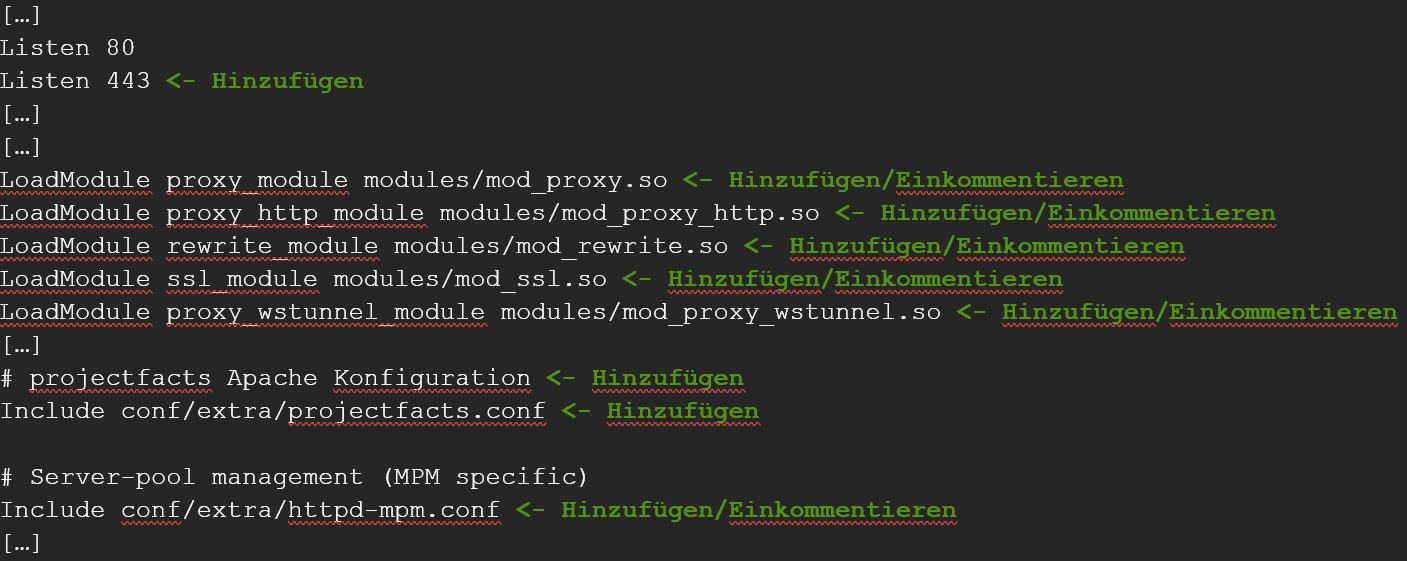
Öffne C:\Apache24\conf\extra\httpd-mpm und ergänze unter mpm_worker_module:
StartServers 2
MinSpareThreads 320
MaxSpareThreads 320
ThreadLimit 64
ThreadsPerChild 64
MaxRequestWorkers 320
MaxConnectionsPerChild 0
Starte den Apache-Server anschließend neu.
Apache Connection Timeout
Passe in der projectfacts.conf den ProxyPass an (Windows: C:\Apache24\conf\extra\projectfacts.conf, Linux: /etc/apache2/sites-enabled/projectfacts.conf):
ProxyPass "/" "http://example.com" connectiontimeout=10 timeout=600Häufige Probleme
Warum funktionieren die Live-Updates (WebSockets) nicht?
Ohne die WebSocket-Weiterleitung kommen Echtzeit-Benachrichtigungen nicht durch. Übernimm ProxyPass /ws/ ws://localhost:8080/ws/ (und die zugehörige ProxyPassReverse-Zeile) aus der Beispielkonfiguration.
Warum brechen lange Anfragen ab?
Der Standard-Timeout des Reverse Proxy ist zu kurz. Erhöhe ihn am ProxyPass, z. B. connectiontimeout=10 timeout=600.
Warum landen Aufrufe weiter auf HTTP statt HTTPS?
Im *:80-VirtualHost fehlt die Umleitung. Setze dort Redirect / https://server.example.de/.
Typische Fragen & Anforderungen
| Du möchtest … | So geht’s |
|---|---|
| Ein kostenloses SSL-Zertifikat | Über Let’s Encrypt mit dem Certbot. |
| HTTP auf HTTPS umleiten | Im *:80-VirtualHost Redirect / https://server.example.de/ setzen. |
| WebSocket-Verbindungen (Live-Updates) | ProxyPass /ws/ ws://localhost:8080/ws/ aus der Beispielkonfiguration übernehmen. |
| Lange Anfragen brechen ab | Den ProxyPass-Timeout erhöhen (z. B. timeout=600). |
| Nginx statt Apache verwenden | Siehe Nginx als Reverse Proxy (nur Linux). |
Verwandte Themen
- Nginx als Reverse Proxy einrichten Installation Konfiguration
- teamspace mit Docker installieren Installation Konfiguration
- Weitere Server-Konfigurationen Installation Konfiguration